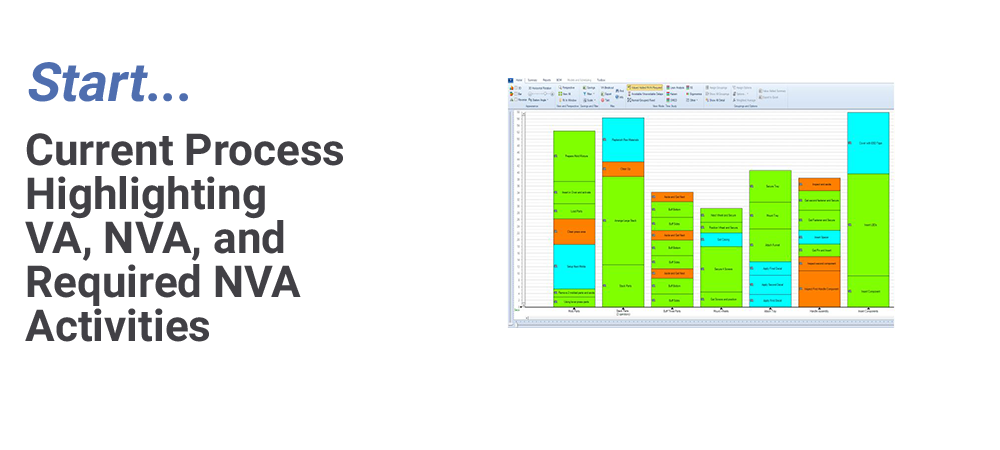
During lean, kaizen, SMED, 5S projects and other continuous improvement events, clients repeatedly highlighted difficulty in reviewing and documenting saving opportunities. This is of particular concern with longer cycle work with lots of activities. Savings and Improvements offer a consistent and simplified method to support these key continuous improvement initiatives
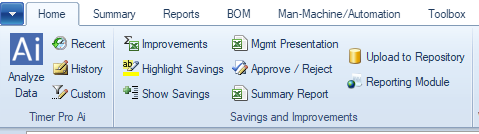
The value of the Savings and Improvement options to our client’s continuous improvement initiatives are reflected by their location in Timer Pro – immediately to the right of Timer Pro Ai in the Home ribbon of the Balance application as shown below.
Starting with the Improvements option at the top left and working through each option in turn to the Reporting Module to the right will dramatically speed management, documentation, approval and reporting of your process improvements initiatives throughout your company. This allows you to focus on improving the process rather than processing the improvements.
The Savings and Improvement Process
Timer Pro includes an option to anonymize any video time study or balance process. This involves replacing actual activity descriptions with random words. If any activity occurs more than once in a process the same random description will be applied each time.
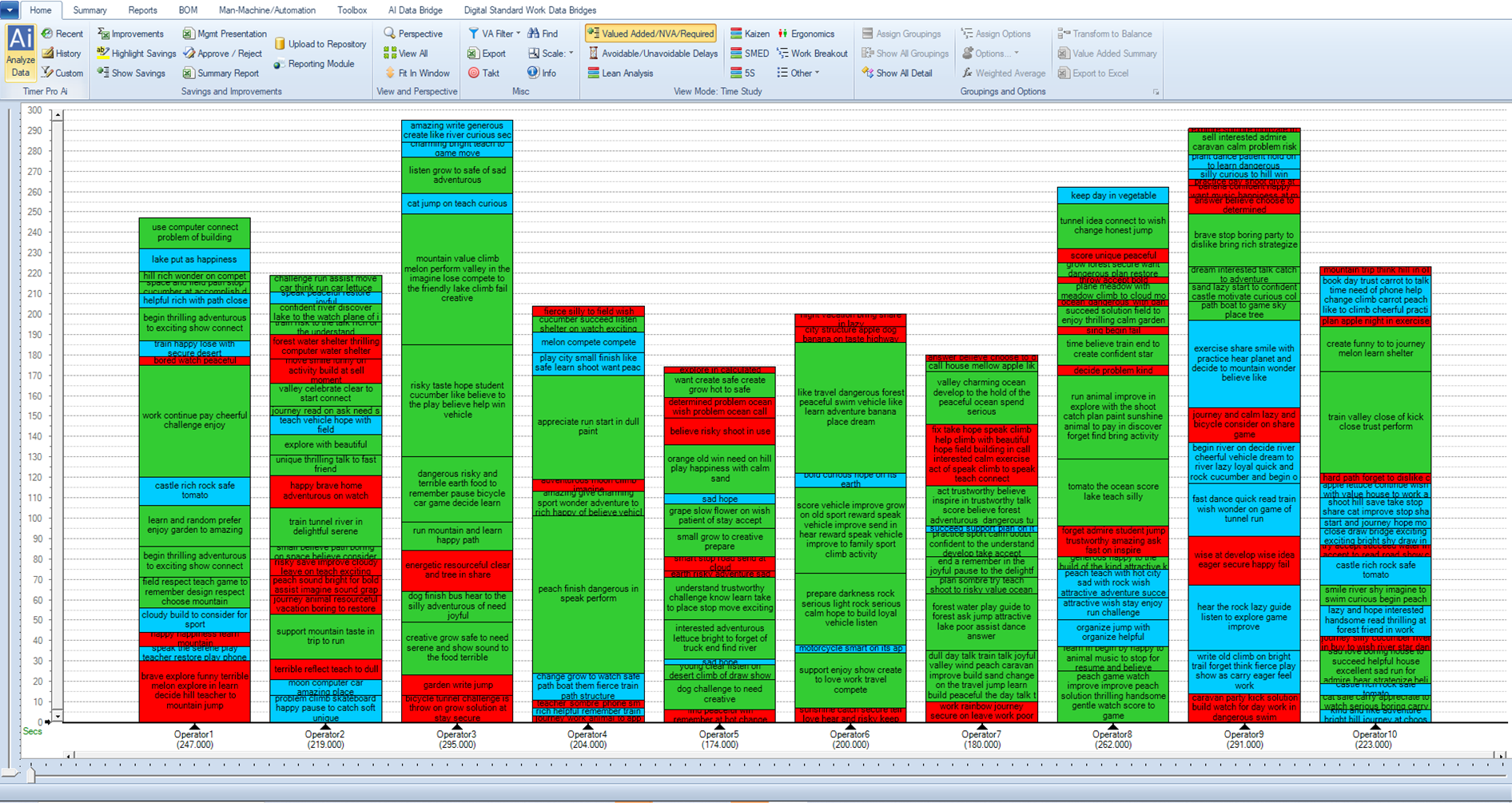
Here is a sample anonymized study from an actual Timer Pro client:
Click Image Below to Enlarge
Sample Study
Assume a kaizen event has been initiated involving 3 teams to improve the process. .
Step 1: Improvements
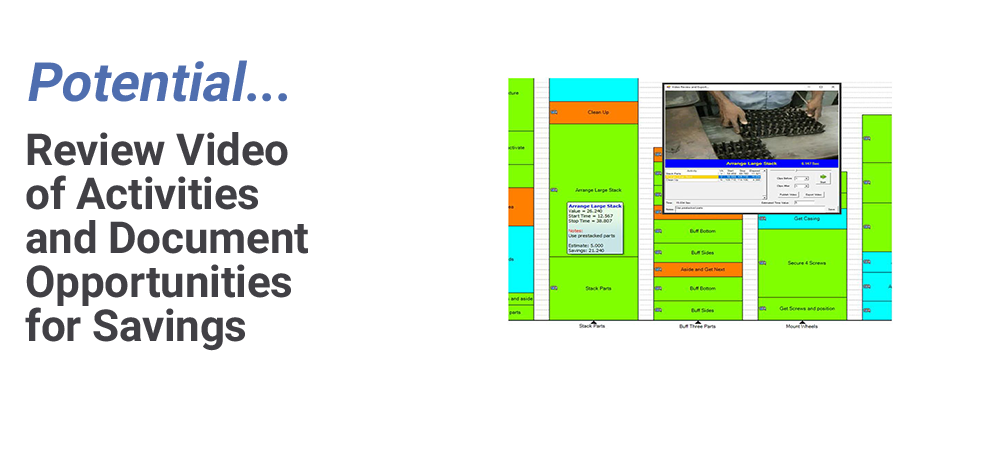
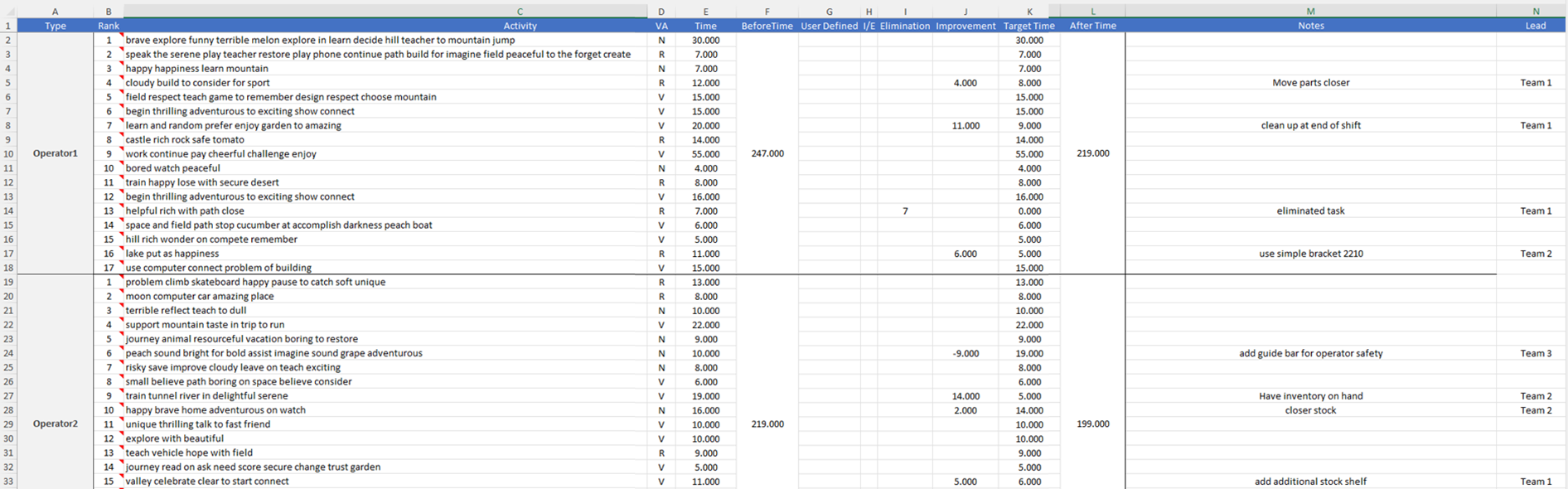
This can be done by reviewing each activity where you believe there is an improvement opportunity by clicking in the activity in the chart above and editing each one by one. Clients reported that this was too time-consuming. The Improvements selection sends all process data to Excel to into a customized template..
Click Image Below to Enlarge
Improvements and Customized Excel Template
Only a section of the template is shown but if you expand the image, column M includes the improvement suggestion and column N contains the team responsible for evaluation the suggest – either Team 1, Team 2 or Team 3 etc.
The Improvements template allows users to play back video content by activity, enter estimated times and document their ideas. The edited content can then be easily imported back into the source balance file from which it came. All the edits made in Excel are placed in the required Timer Pro fields automatically. The estimated time saving versus the one -by-one editing is 80%+.
STEP 2 Highlight Savings
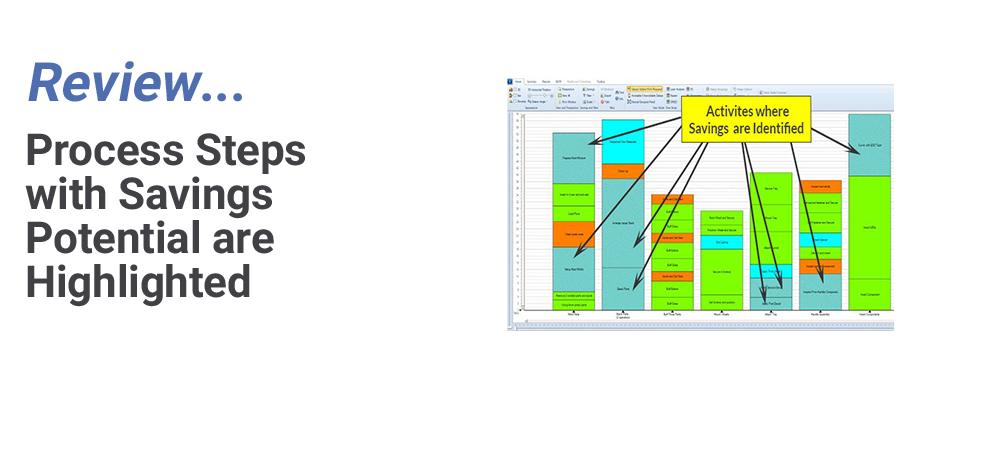
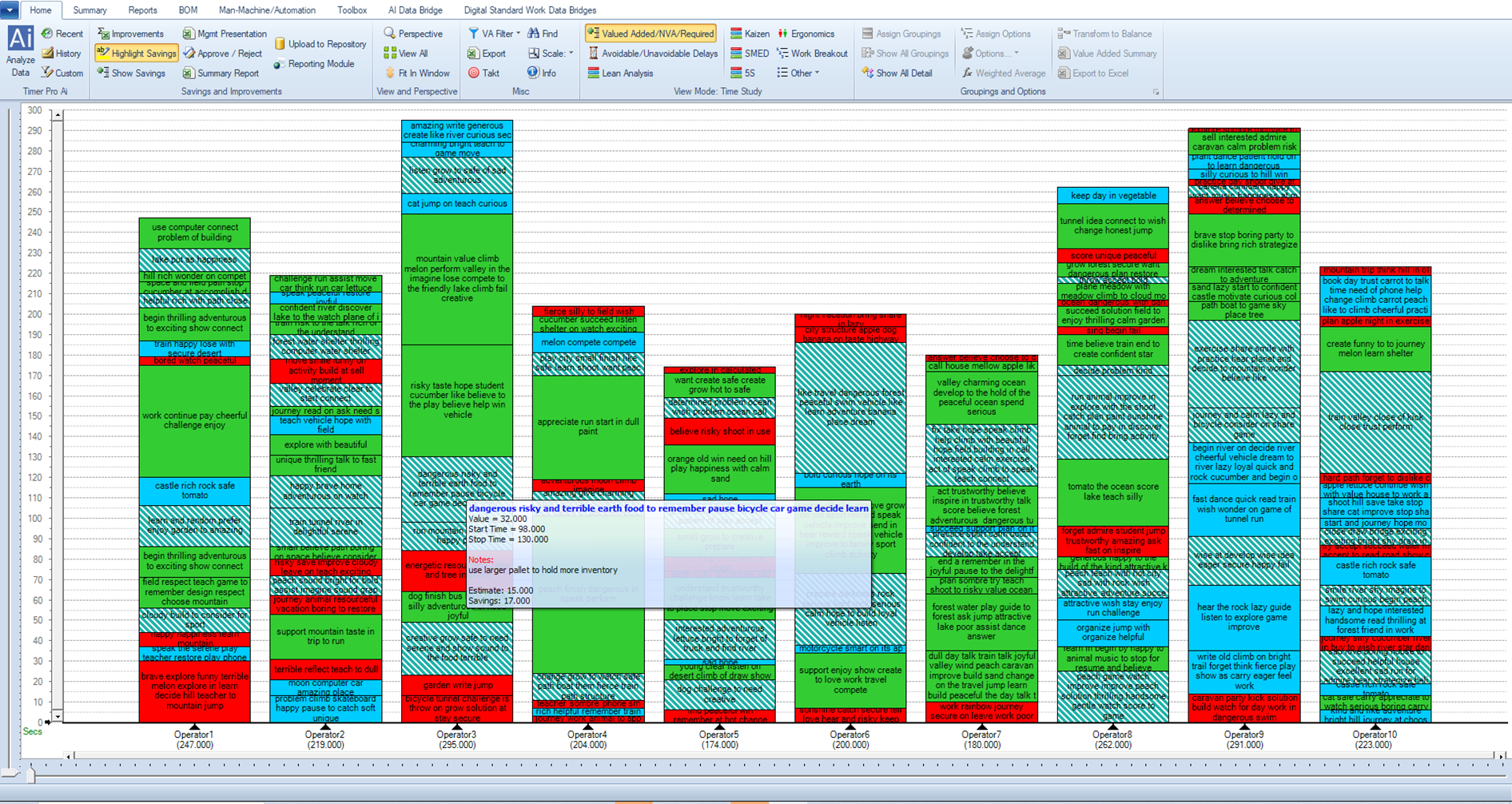
This option shows all the activities in the process for which suggestions for improvements have been made. Hovering over any of the shaded activities will display a popup box showing a description of the suggestion that has been made for that activity and the estimated time if the suggestion is approved.
Click Image Below to Enlarge
Highlight Savings
STEP 3 Highlight Savings
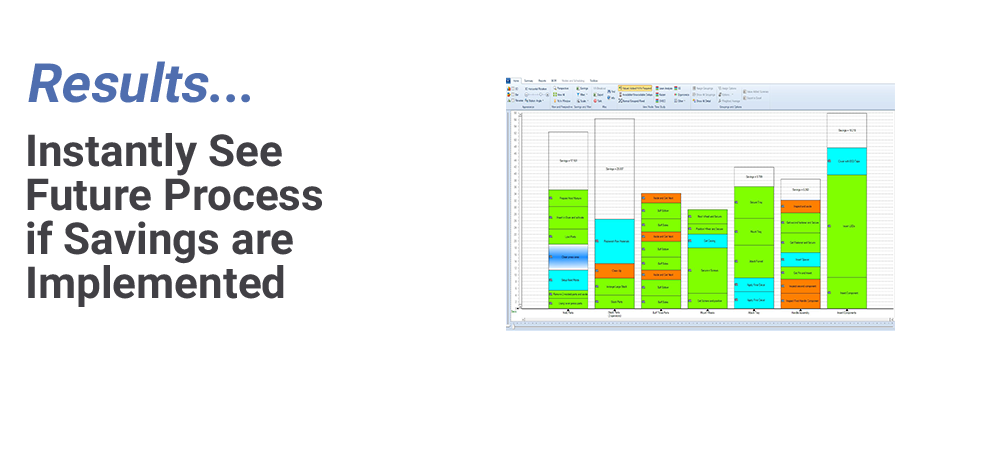
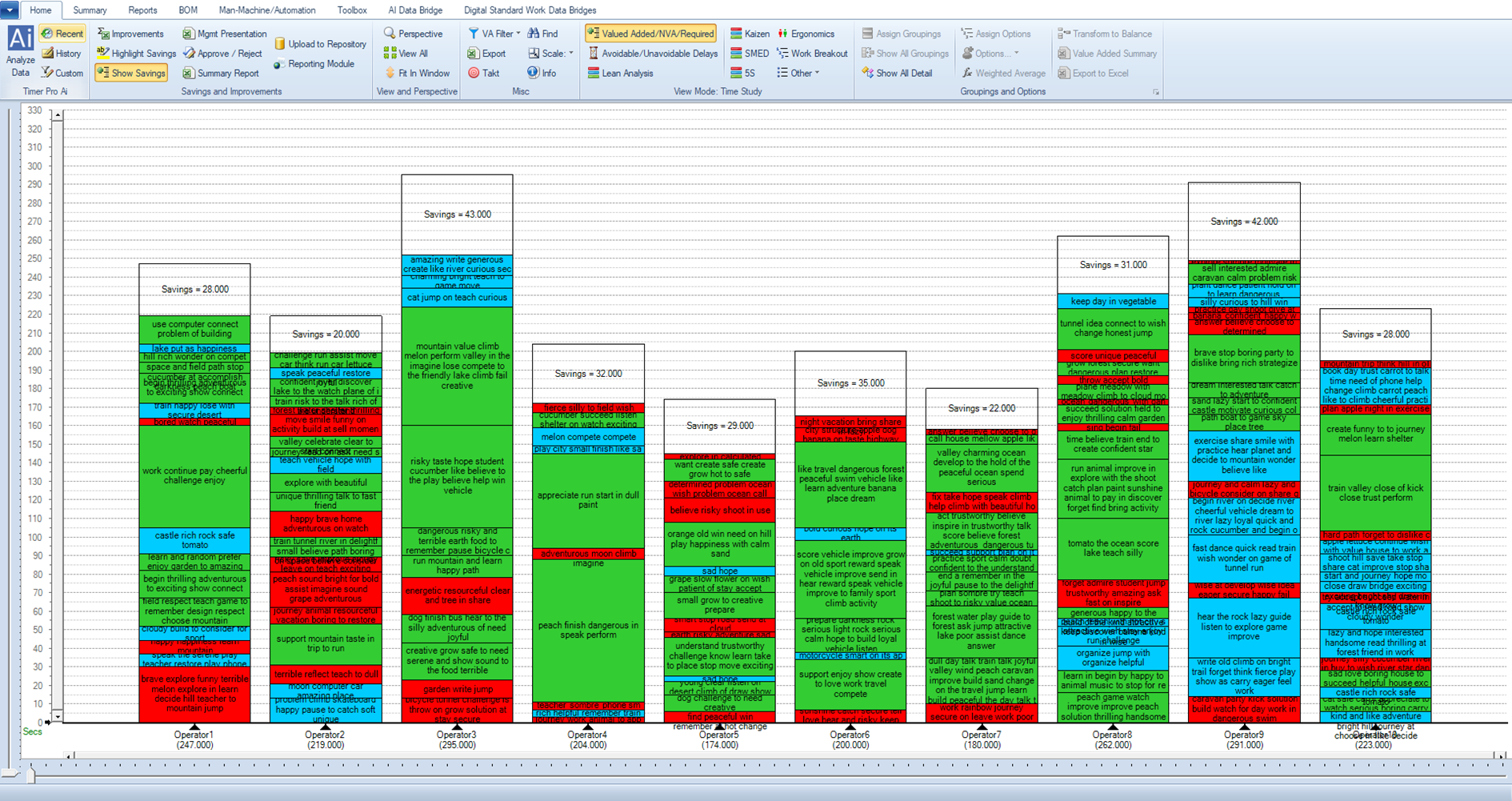
This shows the future state if the process if ALL suggestions are approved. Note that it is highly unlikely that every suggestion made will be approved during a continuous improvement event.
Click Image Below to Enlarge
Future State of Approved Suggestions
Step 4 Management Presentation
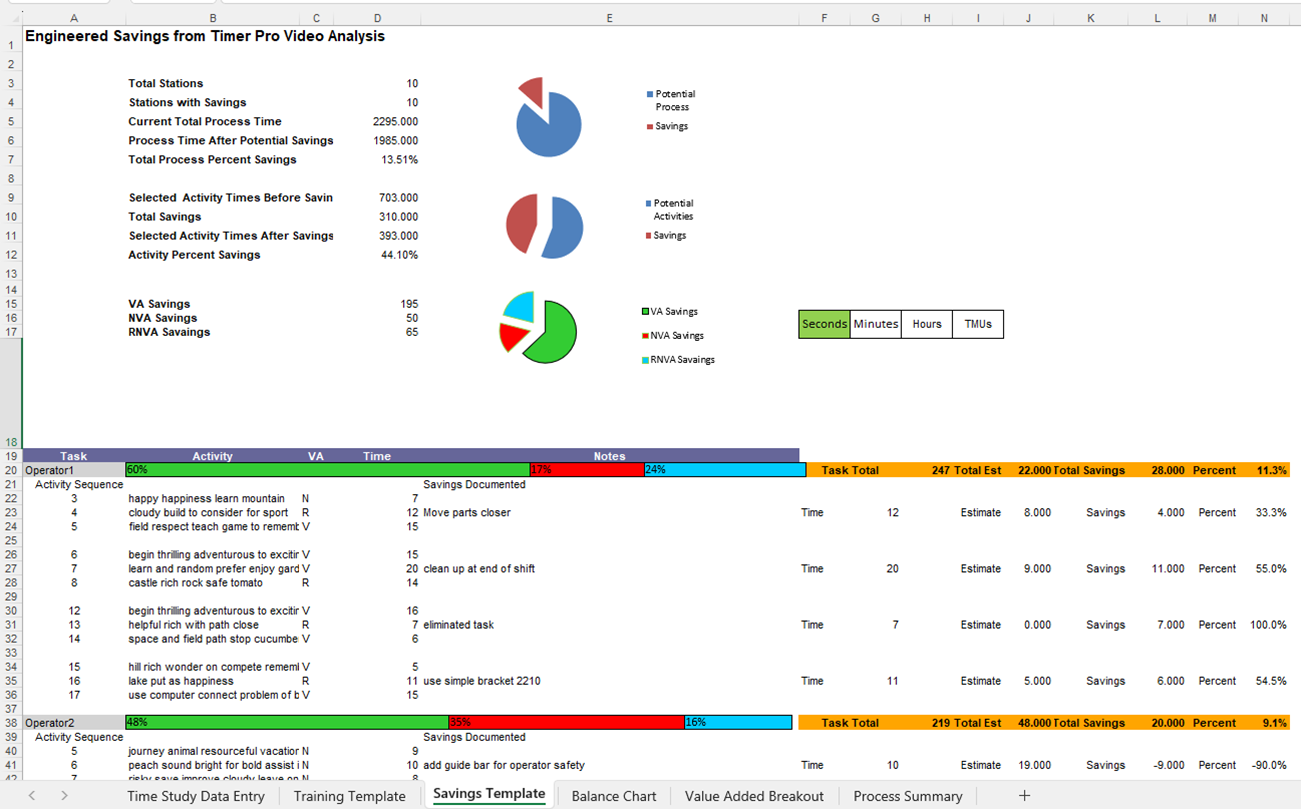
An Excel report that is used to present every suggestion made in the project for management approval. Video content can be played back for each suggestion to support the case to approve each suggestion.
Click Image Below to Enlarge
Excel Report for Review with Video Playback
This report documents:
Total process saving submitted and percent change
Total savings related to the specific activities that are being suggested for improvement and percent change
Percent of saving that came from value added, non-value added and required non-value-added
For each operator or station each individual suggest made with linked video and the resulting potential savings
Additional report sheets include current and future states, value added breakout and by station or operator charts.
Step 5 Approve /Reject
Click Image Below to Enlarge
Approval Screen
The approval screen has been optimized to allow you to quickly and easily batch approve and reject suggestions. Approval time savings of at least 50% are being reported.
Step 6 Summary Report
In seconds Timer Pro will generate a complete project report package including:
Total Savings
By Station Summary
By Station Detail
By Station Improvements
By Lead Detail
By Lead Summary
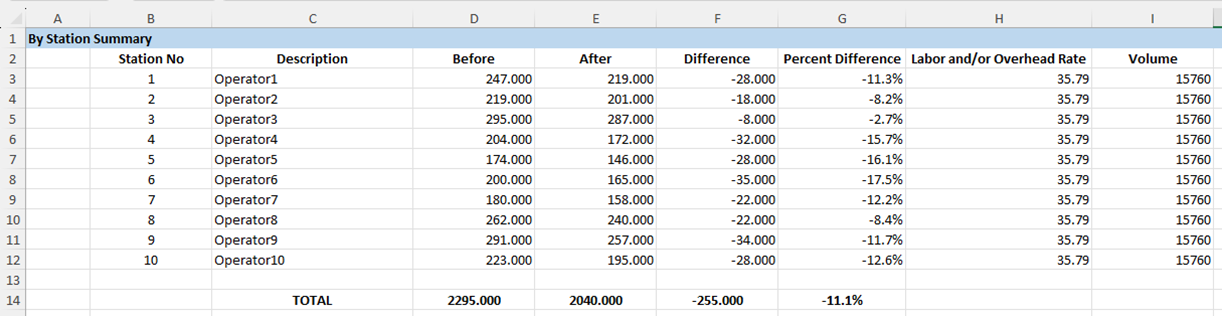
Below is the “By Station Summary” report. This allows you to add your own labor and/or overhead rates and volume for the period you are planning for to enable each improvement to be appropriately costed. Labor, overhead and volumes are shown here as being the same but can be different for each station.
Click Image Below to Enlarge
By Station Sumamry
Below is the “By Lead Summary”. This is sorted by the Team that had the greatest cost savings to the least. Average saving per improvement is also shown along with the total savings projected for the project – in this example $39,953.57
Click Image Below to Enlarge
By Lead Summary
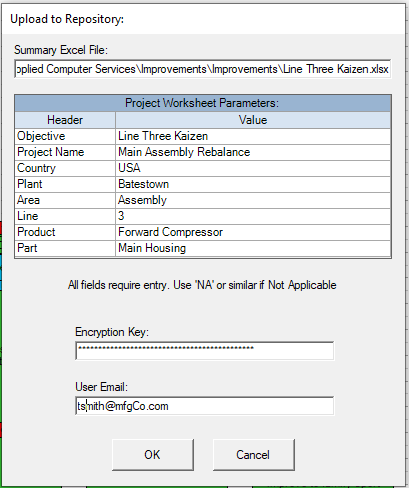
Step 7 Upload to Repository
The summary report is uploaded to the Secure Repository.
The Repository is a 100% secure Savings and Improvement cloud-based repository has been introduced for clients to store and report on the results of all their continuous improvement projects. Your IT team provides the unique encryption key to be used on their data to ensure full security. As the host of the repository, neither we nor anyone else can access your data as there is no way to know the key being used.
Click Image Below to Enlarge
Upload to Secure Repository for Consolidation
Step 8 Reporting Module
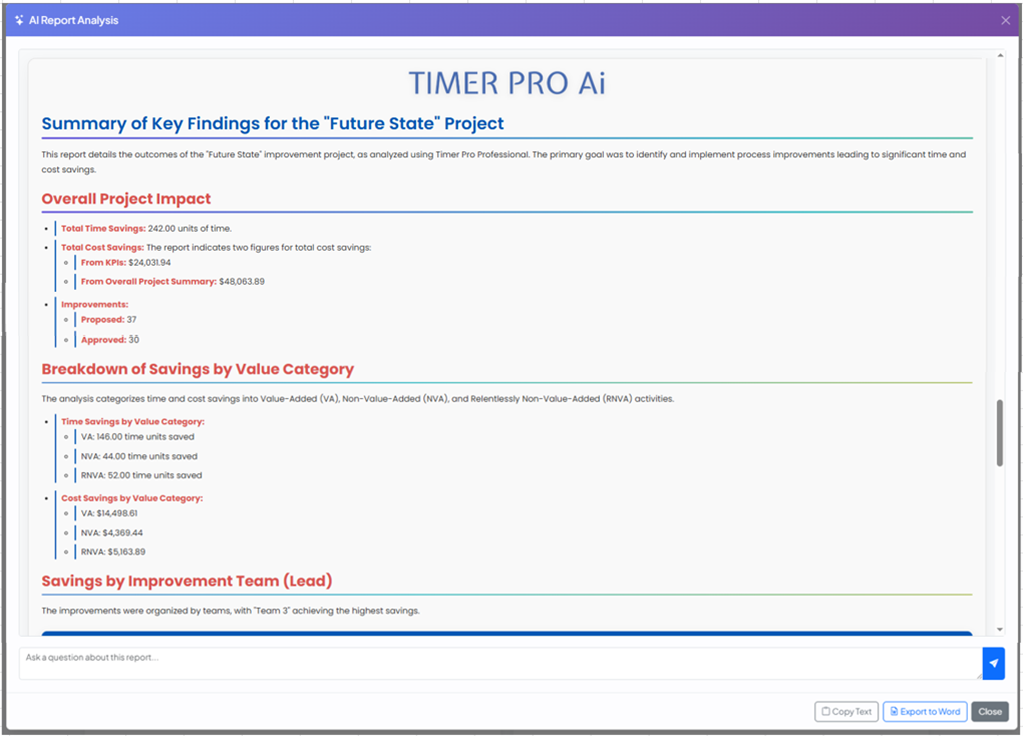
Access the reporting module via your Timer Pro install key and pasting in your unique encryption key. The key is never saved so only you control access to your data uploaded from the Saving and Improvement reports you develop locally. The repository provides detailed reports and summarizations of any number of projects. Timer Pro AI is available to assist with summarizing your results.
Click Image Below to Enlarge
Sample Analysis by Timer Pro AI
WATCH VIDEO – Saving Your Results to the Secure Repository
WATCH VIDEO – Using the Encrypted Savings and Improvements Repository
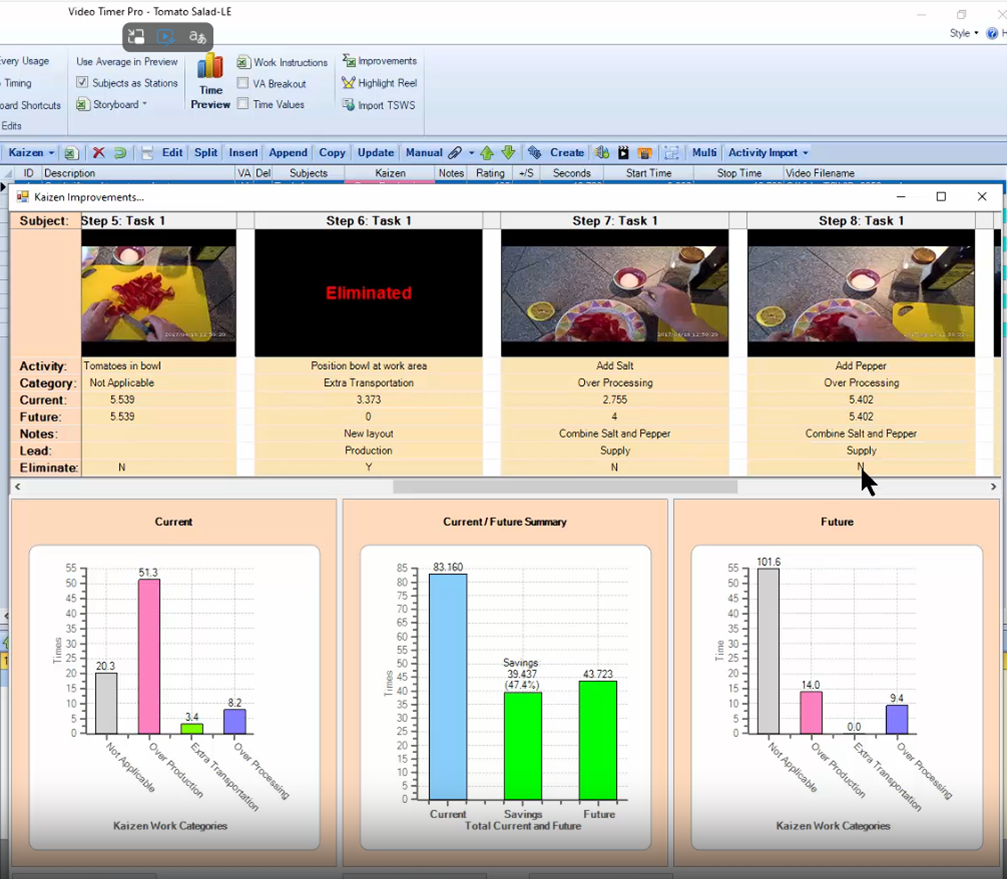
New “Improvements” Option for Data Collection in Video Time Study
A new “Improvements” option has been added to the Data Collection ribbon of video time study to allow the capture of improvement opportunities during video analysis.
Click Image Below to Enlarge
Capture Improvements during Video Analysis
The option recognizes whether the user is in one of the four continuous improvement modes (i.e. Lean, Kaizen, SMED or 5S) and presents the appropriate standard selection to support the process. Improvements defined in Video Time Studies can be passed to Balance module for further processing and reporting.
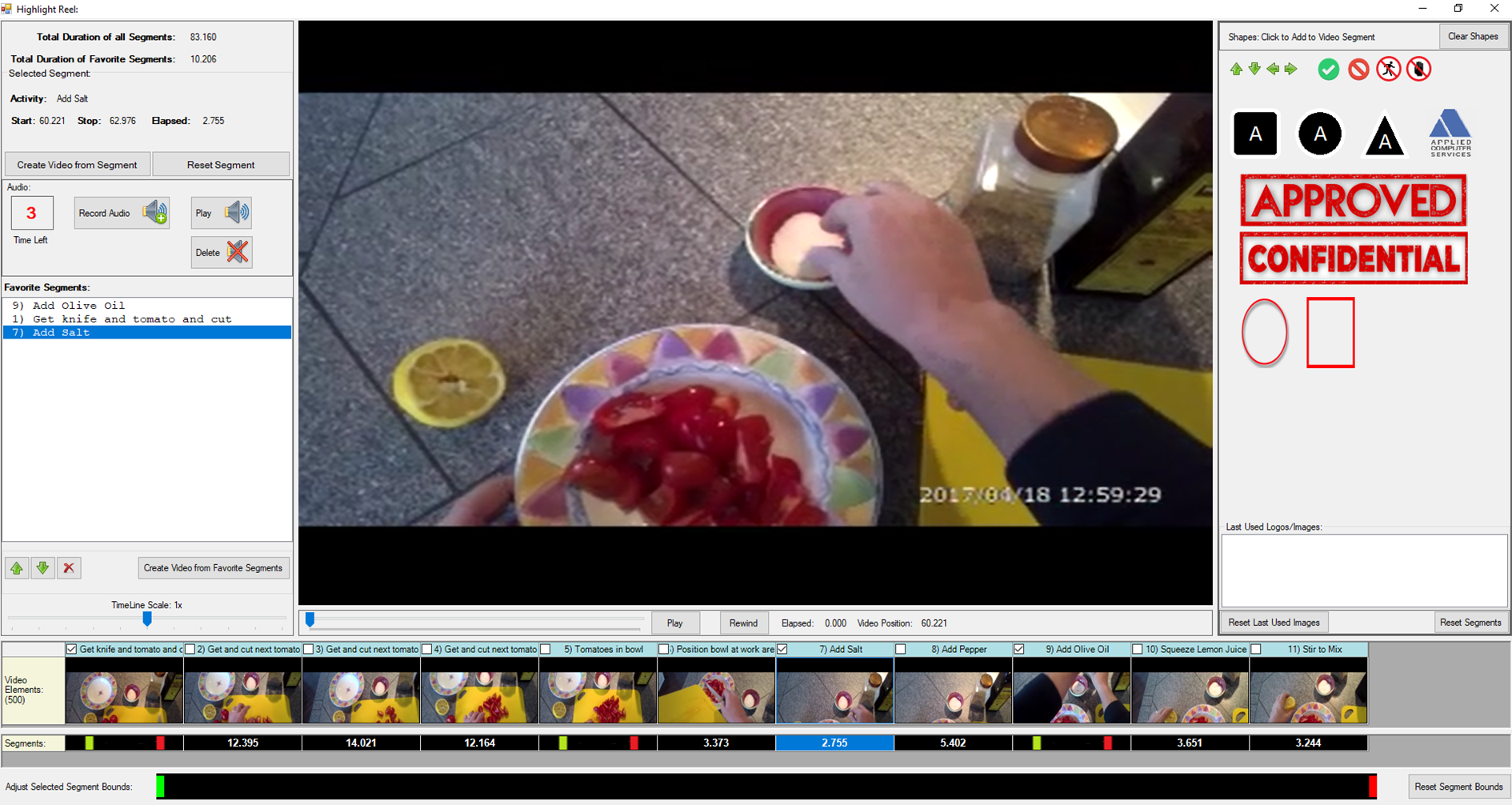
New “Highlight Reel” option for Data Collection
A new “Highlight Reel” option has been added to the Data Collection ribbon. Similar to sport event coverage, you can now isolate specific events in a process and add your own audio narration and supporting notations to support your presentation of improvement opportunities.
Click Image Below to Enlarge
Highlight Reel Option
Google Unwanted Software Policy Compliance Statement
We hereby attest that the software application offered here is developed, owned and distributed by us for the purposes of process measurement to support your continuous improvement initiatives; will not affect the performance of your system hardware or change any system settings; is easily completely removable from your system; does not collect or transmit any private information in any form; is not bundled with any other software; is free of malware.